

Mozilla Thunderbird is a free Email client from the people that brought you Firefox. It’s fast, secure, and supports extensive plug-ins that add additional functionality. Thunderbird works under Windows, Mac OS X, and Linux. These instructions are for version 38.
If you are opening Thunderbird for the first time, the new account setup screen will come up automatically. Otherwise, select Account Settings.. from the Tools menu. Select “Add Mail Account…” from the Account Actions pulldown menu in the lower left on the window.
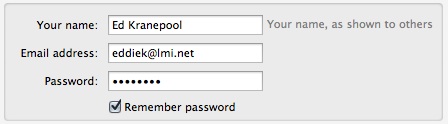
Enter the name and email address you want to appear on your outgoing email. Type in your password and check “Remember password” if you want your password to be stored in Thunderbird. Click Continue.
Thunderbird will scan common host names under the domain. If you are using an lmi.net email address, it will find the correct server names automatically, and you shoud see something like this:
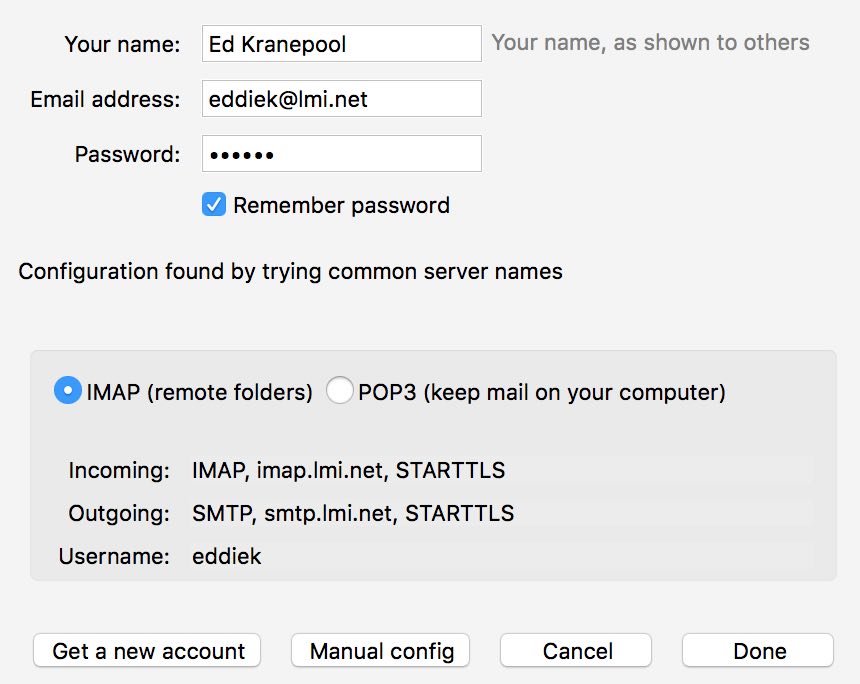
Here you need to choose if you are going to use POP or IMAP to check your mail (see this tech note if you are unsure what to choose.)
Then click Done and you are finsihed!
If you are using your own domain name for email, then Thunderbird will not figure out the host names by itself, so you will need to enter the information manually. Fill in the information as shown here (using your email address for the Username)
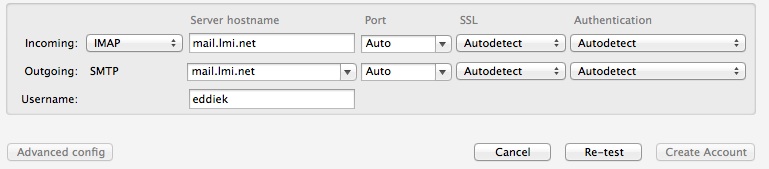
Type in mail.lmi.net for both incoming and outgoing mail server (regardless if you are using POP or IMAP).
Then click the Re-test button. The port numbers should then get filled in, after which you can click the “Done” button to finish.